


SketchUp Warehouse: How to Access, Download and Use Free Models

Design moves faster when you don’t have to build everything from the ground up. Deadlines move quickly, ideas shift mid-project and clients expect to see clear concepts early in the process.
SketchUp Warehouse gives designers access to ready-made 3D content that helps refine layouts and develop presentation scenes without repeatedly modelling standard elements. Imported models make it easier to test ideas before moving into more detailed design work.
What SketchUp 3D Warehouse Actually Is
SketchUp 3D Warehouse is an online library of downloadable 3D models created by users, brands and manufacturers. It is often referred to simply as “SketchUp Warehouse” in everyday searches and conversations, although the official name remains SketchUp 3D Warehouse.
The platform gives designers access to furniture, lighting, appliances and architectural elements that can be imported directly into SketchUp projects. It is separate from the SketchUp Extension Warehouse, which focuses on plugins and workflow tools rather than downloadable model content.
Designers can access the SketchUp 3D Warehouse directly in SketchUp Pro or via the online platform. The web version works well for early planning and product research, while in-app importing keeps revisions connected to active projects.
Why SketchUp 3D Warehouse Matters in Real Workflows
Professionals use imported models to test layouts, build presentation scenes and reduce repetitive modelling during concept development. Access to ready-made content helps projects move more smoothly through revisions and presentation updates. Imported models make it easier to compare design options without rebuilding standard elements throughout the project.
Manufacturer Models vs Generic Models
Different model types support different parts of the design process. Lightweight generic assets are better suited to early layout planning, while manufacturer models provide more accurate dimensions, materials and product specifications later in projects. Detailed manufacturer assets improve rendering quality during presentation and approval stages.
How to Search and Identify Better Models
Finding suitable models in SketchUp 3D Warehouse depends on how specific the search terms are. General searches return too many unrelated results, while more targeted terms make it easier to find models that fit the required scale, style and level of detail.
The browser platform provides access to SketchUp 3D Warehouse Free Download content directly through search results. A wide range of models is available through SketchUp Models Free Download searches, particularly for furniture, fixtures and architectural elements.
Best Practices for Finding Better Models
More accurate search terms lead to models that fit more naturally into SketchUp projects and require fewer adjustments later.
Search results improve when:
- Object types are specified clearly.
- Material or style keywords are included.
- Manufacturer names are added.
- Dimensions are referenced.
- Searches are refined progressively.
Search terms help narrow down results, but the quality of imported models still needs to be reviewed before downloading.
| Criteria | What To Look For | Why It Matters |
|---|---|---|
| Model Weight | Lightweight geometry | Improves model performance |
| Scale | Real-world dimensions | Prevents placement issues |
| Geometry Structure | Clean grouped structure | Makes editing easier |
| Components | Logical organisation | Simplifies revisions |
Models with excessive detail or poorly organised geometry require adjustments before they can be used effectively in production files.
Another useful way to find models in 3D Warehouse is by using Image Search. Instead of searching with keywords, you can upload an image of an object you’re looking for, such as a light fitting, chair, tap, or other furniture item. Simply drag and drop the image into 3D Warehouse, and the tool will analyse the image and return visually similar 3D models. This can be particularly helpful when you know what an item looks like but are unsure how to describe it in a search query.
Performance Considerations When Using SketchUp Warehouse
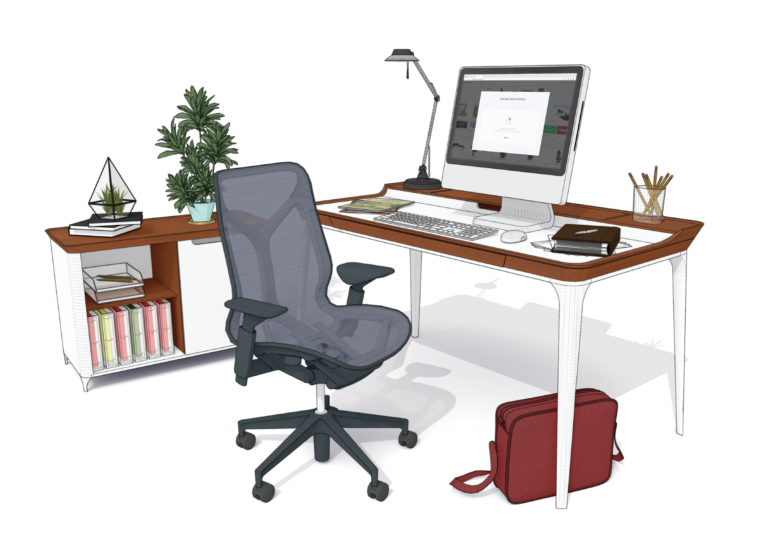
Highly detailed downloads can make organised SketchUp projects noticeably slower to navigate and revise. Models that suit early concept work can create revision problems during presentation updates.
Better-organised imported models make revisions easier:
- Simplify imported geometry.
- Delete unused materials and components.
- Organise Tags by category or space.
- Rename downloaded components.
- Remove unused content.
- Avoid importing entire scenes.
Common Beginner Mistakes When Using 3D Warehouse
Early concept decisions influence how adaptable SketchUp projects remain later in the workflow. Detailed assets introduced too early in the process can increase file size before layouts are finalised.
Decorative objects, vegetation and furniture with unnecessary geometry place additional pressure on projects during revision stages. Downloading complete scenes instead of individual components can introduce unnecessary materials, layers and geometry into organised projects.
Common mistakes include:
- Importing high-detail models too early.
- Ignoring file size warnings.
- Leaving imported geometry poorly structured.
- Downloading unnecessary scene content.
- Neglecting cleanup after imports.
Uploading and Sharing Your Own Models
SketchUp users can upload custom models directly to SketchUp Warehouse to build reusable libraries and share assets across teams or projects. Models that are easier to search, understand and reuse provide more long-term value across collaborative workflows.
Before uploading models:
- Use clear model names.
- Organise reusable components.
- Include accurate product details.
- Remove unnecessary scene content.
- Prepare models for reuse across projects.
For manufacturers and suppliers, shared models can help architects and designers review products, finishes and configurations directly inside SketchUp projects.
Useful Tutorials and Learning Resources
Practical tutorials and workflow examples can help improve importing, organisation and performance management.
Resources include:
- SketchUp Warehouse: Access & Use Free Models
- 3D Warehouse – Square One
- SketchUp Essentials 3D Warehouse tutorials
- Official SketchUp Help Centre resources
- ArchDaily article on SketchUp workflows
- Model Downloading and Optimisation Tutorials
These resources can help users organise imported assets more effectively and build more efficient SketchUp workflows.
Improve Concept Development With SketchUp 3D Warehouse
Design changes become easier to manage when furniture, fixtures and presentation assets are already available inside SketchUp projects. Downloaded models reduce the need for repeated modelling and support faster revisions throughout the design process.
Create more flexible SketchUp workflows with SketchUp 3D Warehouse, or access the full SketchUp platform by requesting a free trial.